Quick Start Guide
1. Quick Start Guide
A Overview
The CanRisk Tool must only be used by qualified healthcare professionals. This version of the tool has been optimised for use in the specialist genetics setting; other versions of the tool will become available in due course. It enables you to calculate future breast/ovarian cancer risks for women and prostate cancer risks for men and their estimated risk of carrying a pathogenic gene variant.
The tool prompts you to enter the risk factors (e.g. age, lifestyle, hormonal), genetic test results and family history data, and uses this information to calculate the cancer risks. To compute risks using the CanRisk Tool, follow the steps below.
B Input the risk factors
The CanRisk tool (Figure 1) enables you to enter the risk factors in separate sections. Click on each section heading (e.g. Lifestyle, Figure 1) to open the section and complete the questions within it. You can complete the sections and questions within them in any order, and the section heading itself will turn green (e.g. Lifestyle, Figure 1) when you have completed all the questions within it. You must specify mandatory input marked with a warning icon (e.g. date of birth, Figure 1).
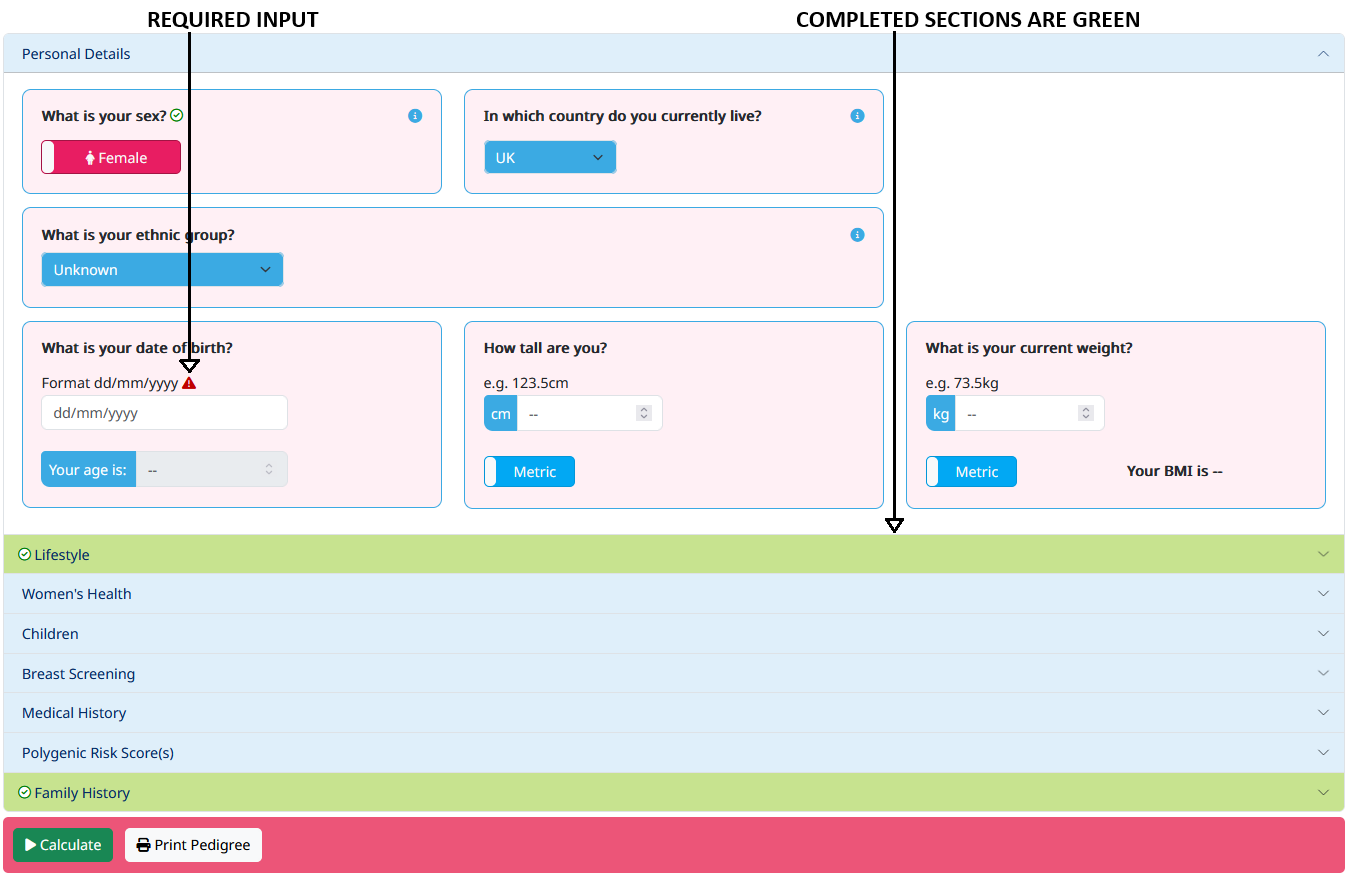
You will be prompted to enter the following information in each section. Note some sections are only required for women.
- Personal Details
- sex and year of birth are required
- ethnicity (UK ethnic groups only)
- height and weight (used to calculate BMI) - women only
- Lifestyle - women only
- alcohol consumption
- Women's Health - women only
- age when periods started
- use of the oral contraceptive pill
- whether periods have stopped, and at what age
- Children - women only
- age of first birth
- number of children
- Breast Screening - women only
- mammographic density (BI-RADS, Volpara, Stratus)
- Medical History
- age of diagnosis of breast, ovarian (women only), prostate (men only) or pancreatic cancers
- Polygenic Risk Score(s)
- genetic ancestry
- results of any SNP array or Polygenic Risk Score tests
- Family History
- family history data (age, cancers, pathology, genetic tests), see below for details on building a family history
- results of gene tests for family members are entered by clicking on a family member and use the Gene Tests tab in the 'Individual's details' panel.
C Build the family history
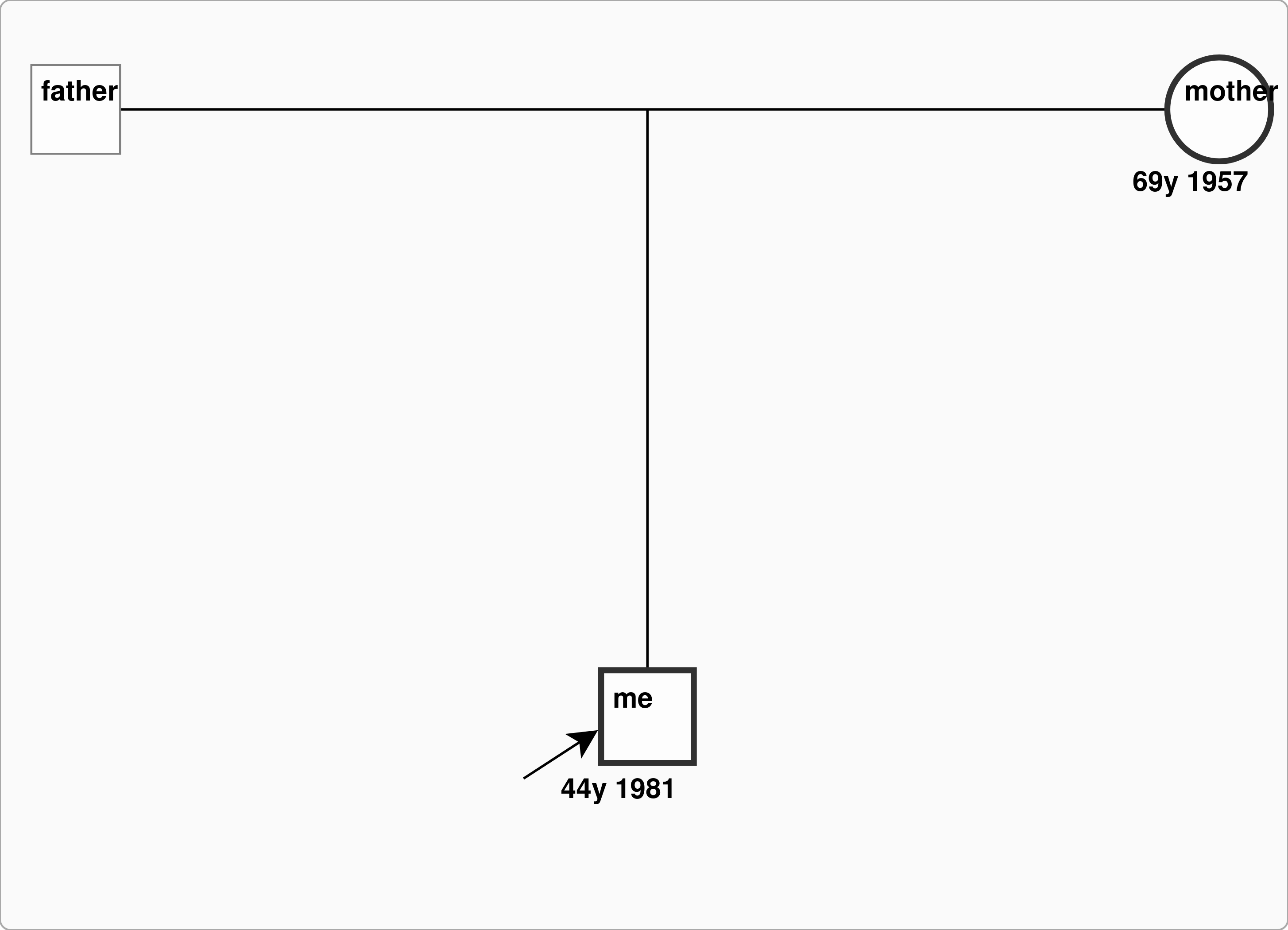
When you click on the last section in the CanRisk tool menu Family History (Figure 1) this opens a graphical pedigree editor (Figure 2) which enables you to build the family history for the individual.
Adding family members
You can add family members using the following methods:
- When you first open the Family History section (CanRisk tool menu: Figure 1), the
Family - Building Options window (Figure 3) appears.
You can use this to add brothers, sisters, sons, daughters, uncles, aunts, grandparents to your pedigree.
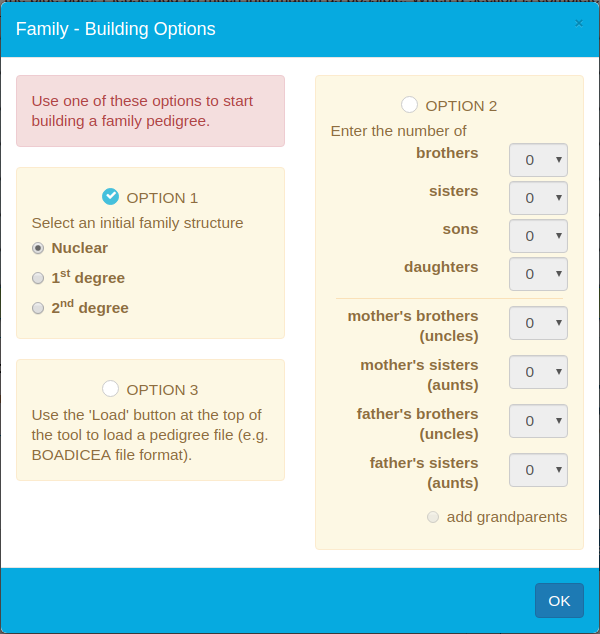
Figure 3. Family - Building Options - Once you have started to build your pedigree, place the mouse pointer over an individual,
in the graphical pedigree editor, to reveal the editing widgets (Table 1).
You can use these widgets to add partners, parents, siblings, children, consanguineous partners.
Tables 2 and 3 list the symbols and cancer colours used to draw the pedigree itself.
Table 1. Editing widgets Widget Description Chain link add a partner† Up arrow add parents Person with a plus add a sibling Down arrow add a child 
add consanguineous partner‡ Table 2. Pedigree symbols Symbol Description Square male Circle female Square rotated to a diamond unknown Circle and square, each with a diagonal line through it deceased Chevron dizygotic (fraternal) twin Filled triangle monozygotic (identical) twin Table 3. Cancer colours Colour Cancer Orange breast Pink contralateral breast Dark green ovarian Red prostate Blue pancreatic
†You can add half siblings by clicking the link widget on the parent that is common to both siblings – this will create a new partner.
‡You can add consanguineous partners, e.g. cousins. Place the mouse over
an individual and click and drag the triple dashed line widget
to link to his/her new partner.
D Compute the risks
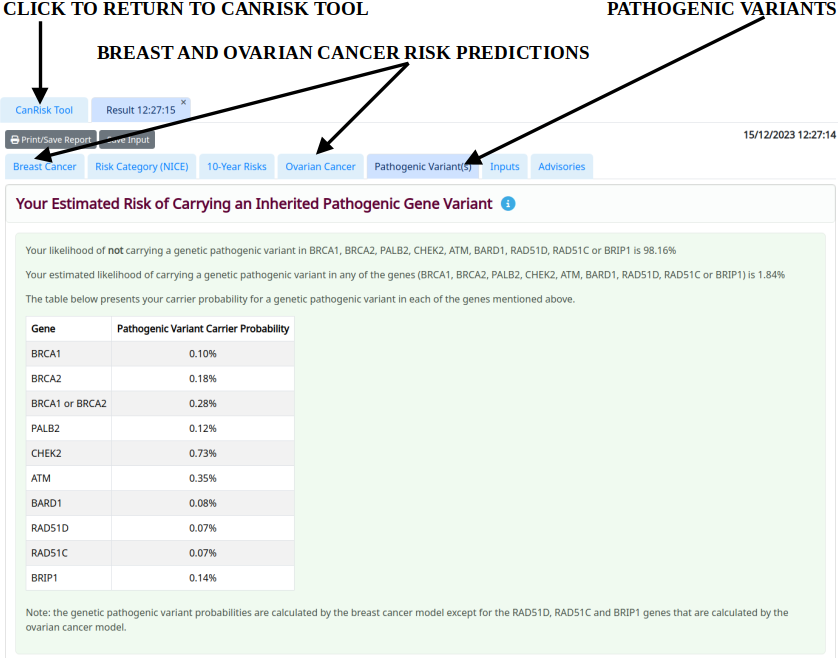
When you have entered your pedigree (as much reliable information as possible), click the 'Calculate' button (Figure 1) to run the risk calculation and view the individual's pathogenic variant carrier probabilities and breast/ovarian/prostate cancer risks in the results tabs (Figure 4). You can use the tabs at the top to go back to the CanRisk tool menu and graphical pedigree editor to update your pedigree and run multiple risk calculations.
Saving the report and the input
Two buttons sit above the results tabs (Figure 4):
- Print/Save Report builds a PDF of the results, to print or to keep with the patient record.
- Save Input downloads the risk factors and family history you entered as a CanRisk data file. Use the Load button at the top of the tool to open that file again later and re-run or amend the calculation – this is Option 3 in the Family - Building Options window (Figure 3). The CanRisk Pedigree Data File Format is documented in the FAQs.
2. Educational Resources
This section is subject to review and new resources may be added.
- The CanRisk YouTube Channel.
- The CanRisk FAQs and How-To articles, which answers questions on the pedigree file format, the risk models, the results and the web-services.
Still have questions?
Most questions are already answered in the FAQs. If yours is not, use the Contact Us button at the foot of any page.